Hi Cath,
@Cath
Just a few suggestions.
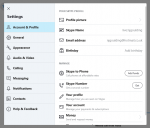
Firstly I think it's definitely better to have an account rather than trying to connect as a guest. If you follow directions to download sykpe, it only takes a few details from you, and creates an app on your computer. Then you can find it from the start menu.
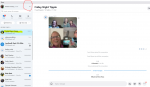
When you open it up, you get a screen like this - you can see someone took a screenshot ot last nights call! All your contacts / calls will stay in the left hand side.
You need to check your settings, especially as you are using an external webcam. click on the three buttons I've circled in red below, and click on settings.
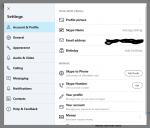
you'll see this menu, click on audio and video:
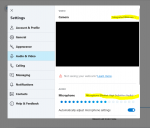
You need to check that the camera you have, us listed here. Mine says integrated as I'm just using the laptop camera. If it't not there, you should be able to search for it. (click on learn more to give you some hints to find it)
When you click the link that
@Beanwood posted to join the call, the important thing is the two icons below. One turns your sound on and off, and one turns your camera (eg, what we see of you) on and off. Each time you click on them, it just toggles between on and off, I think it puts a line through the picture if it's off. You also need to check your volume is turned up high enough to hear us.
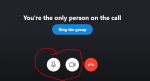
The link that Kate posted is still live, so any person / people can join the call at any time - if no one else is there, you just get the message as above. Happy to test this out with you at a particular time and date to suit you.